How to Print Avery Mailing Labels from Airtable (No Word Mail Merge)
You can print Avery mailing labels directly from your Airtable data - no CSV export, no Word mail merge. TypeFlow's print label mode arranges your addresses on Avery-compatible sheets (5160, 5161, 5162) and generates a print-ready PDF.
For all label types, see our complete label printing guide. To compare with Airtable's built-in tools, see Page Designer vs TypeFlow.
Print Avery Mailing Labels from Airtable (Multiple Labels Per Page)
What You Need Before Starting
To print Avery mailing labels from Airtable, you need four things: your Airtable base with address fields, a label template, Avery label sheets, and a TypeFlow account. No CSV export or Word mail merge required - your data goes straight to a print-ready PDF.
- Airtable base with fields for names and addresses.
- A label template - use TypeFlow's HTML/CSS template builder with print label mode to arrange multiple labels per page.
- Avery label sheets - pick your product number (5160, 5161, 5162, or 8160).
- TypeFlow account - free to create at app.typeflow.us.
What Are Avery Mailing Labels
Avery mailing labels are pre-cut adhesive sheets that work with standard home and office printers. Each Avery product has a unique number - like 5160 or 5162 - that defines the exact label size and how many labels fit on one sheet.
The product number matters because software uses it to position your text correctly. When the dimensions match, you get clean prints without wasted sheets or crooked labels.
Avery Mailing Label Templates You Can Use
Picking the right template comes down to how much space each address needs.
| Avery Template | Label Size | Labels Per Sheet | Best For |
|---|---|---|---|
| 5160 | 1" x 2.625" | 30 | Standard address labels |
| 5161 | 1" x 4" | 20 | Wider address labels |
| 5162 | 1.33" x 4" | 14 | Larger address labels |
| 5163 | 2" x 4" | 10 | Shipping and package labels |
| 5164 | 3.33" x 4" | 6 | Large shipping labels |
| 8160 | 1" x 2.625" | 30 | Standard address labels for inkjet printers |
Avery 5160 for Standard Address Labels
The most popular template. Thirty labels per sheet, compact size, works for typical 3-4 line addresses. If you mail holiday cards or donor thank-you letters, 5160 handles the job.
Avery 5161 for Wider Address Labels
Same height as 5160, but wider. Twenty labels per sheet. The extra horizontal space helps with longer company names or addresses that run wide.
Avery 5162 for Larger Address Labels
The most room per label - 14 per sheet. Good fit when addresses have five or six lines, or when you want larger, more readable text.
Avery 8160 for Inkjet Printers
Avery 8160 uses the same 30-label layout and label dimensions as 5160, but it is designed for inkjet printers. Choose the product number that matches both your printer type and the label sheets you have.
Step 1: Prepare Your Airtable Base for Mailing Labels
Your Airtable base already holds the data. Organize it so each field maps cleanly to your label template.
At minimum:
- Name - recipient's full name or company
- Street Address - house number and street
- City - city or town
- State - state or province abbreviation
- Zip Code - postal code
- Country - optional, for international mailings
Either structure works - single address field or split across multiple fields. Create a filtered view in Airtable showing only the records you want to print.
How to Filter Which Airtable Records Get a Label
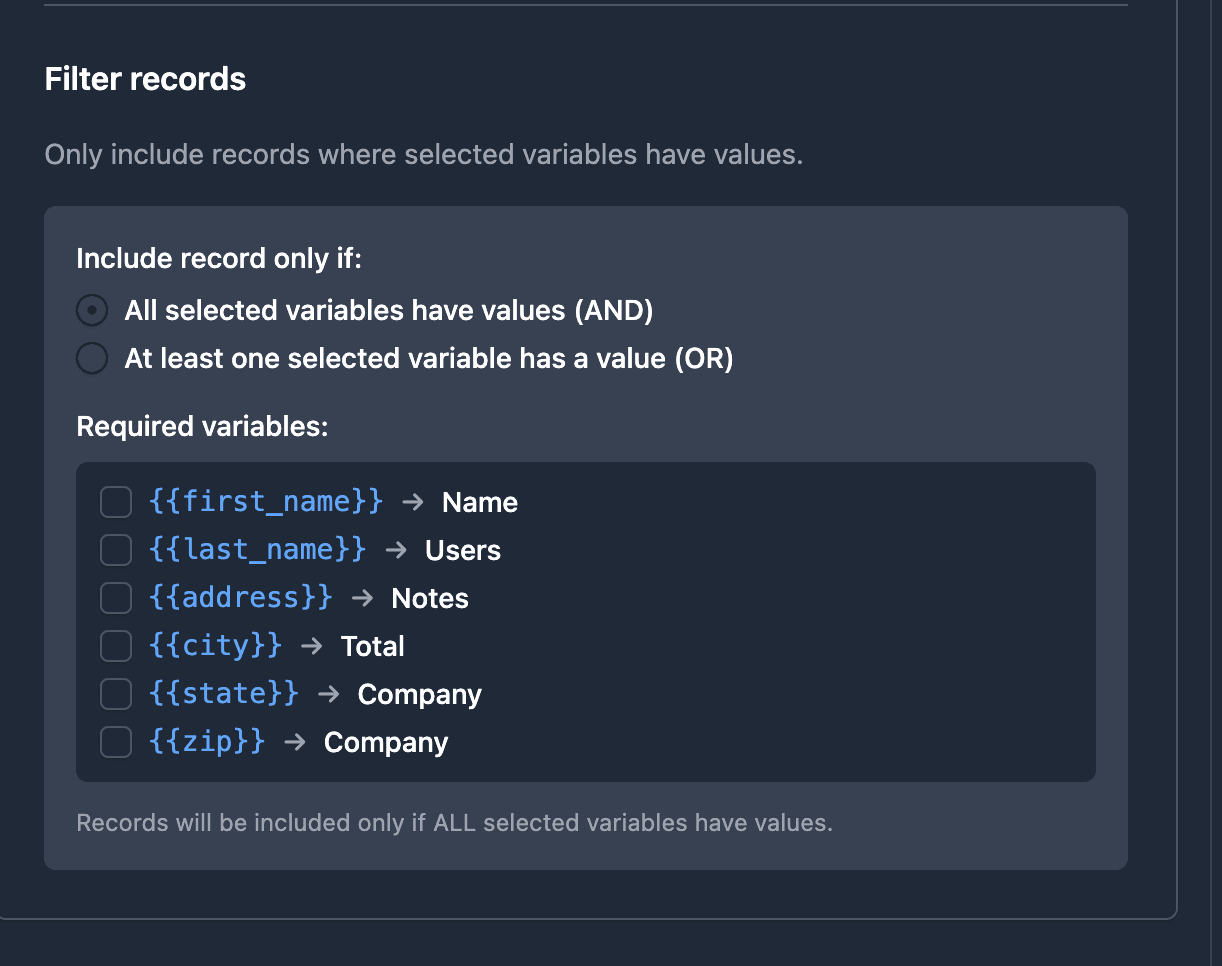
Not every record belongs on a label sheet. Some addresses are incomplete, some contacts are inactive.
TypeFlow lets you set display conditions:
- Checkbox field: only records where "Ready to Mail" is checked
- Status field: only "Active" contacts
- Date field: only records created this month
Step 2: Create Your Avery Label Template
TypeFlow's HTML/CSS template builder with print label mode is the right tool here. You design one label, and TypeFlow repeats it across the entire Avery sheet automatically.
How Print Label Mode Works
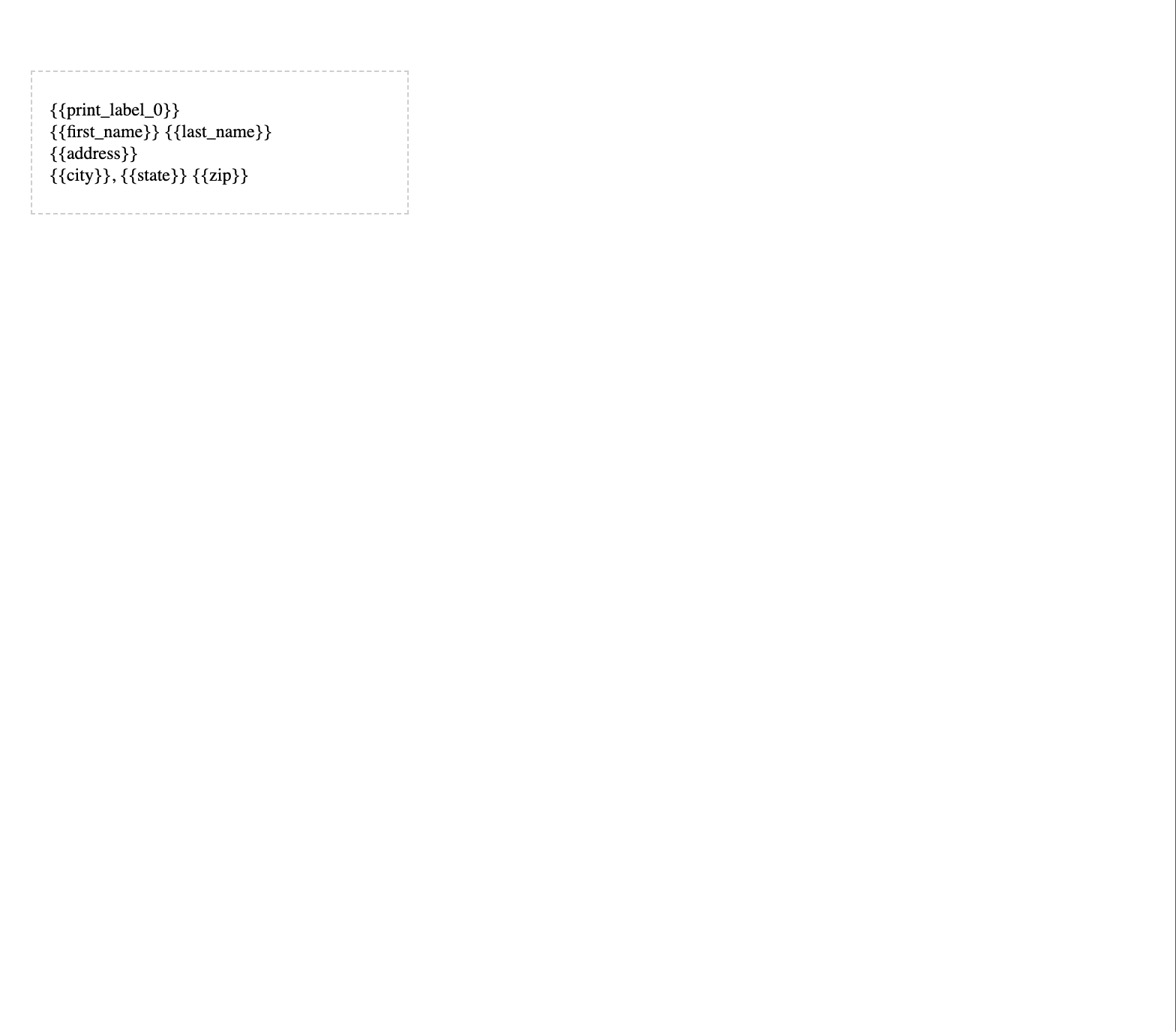
In the template builder, you design a single address label with your variables:
{{Name}}
{{Street Address}}
{{City}}, {{State}} {{Zip Code}}
Then configure the print label mode grid to match your Avery format:
- Avery 5160: 3 columns x 10 rows
- Avery 5161: 2 columns x 10 rows
- Avery 5162: 2 columns x 7 rows
TypeFlow fills each slot with data from a different Airtable record. You design one label, not 30.
Optional: add a logo or return address as static content in the template. It appears on every label automatically.
Step 3: Connect TypeFlow and Map Your Address Fields
Sign up at app.typeflow.us and connect your Airtable account via OAuth. Select your base and the table with your contacts.
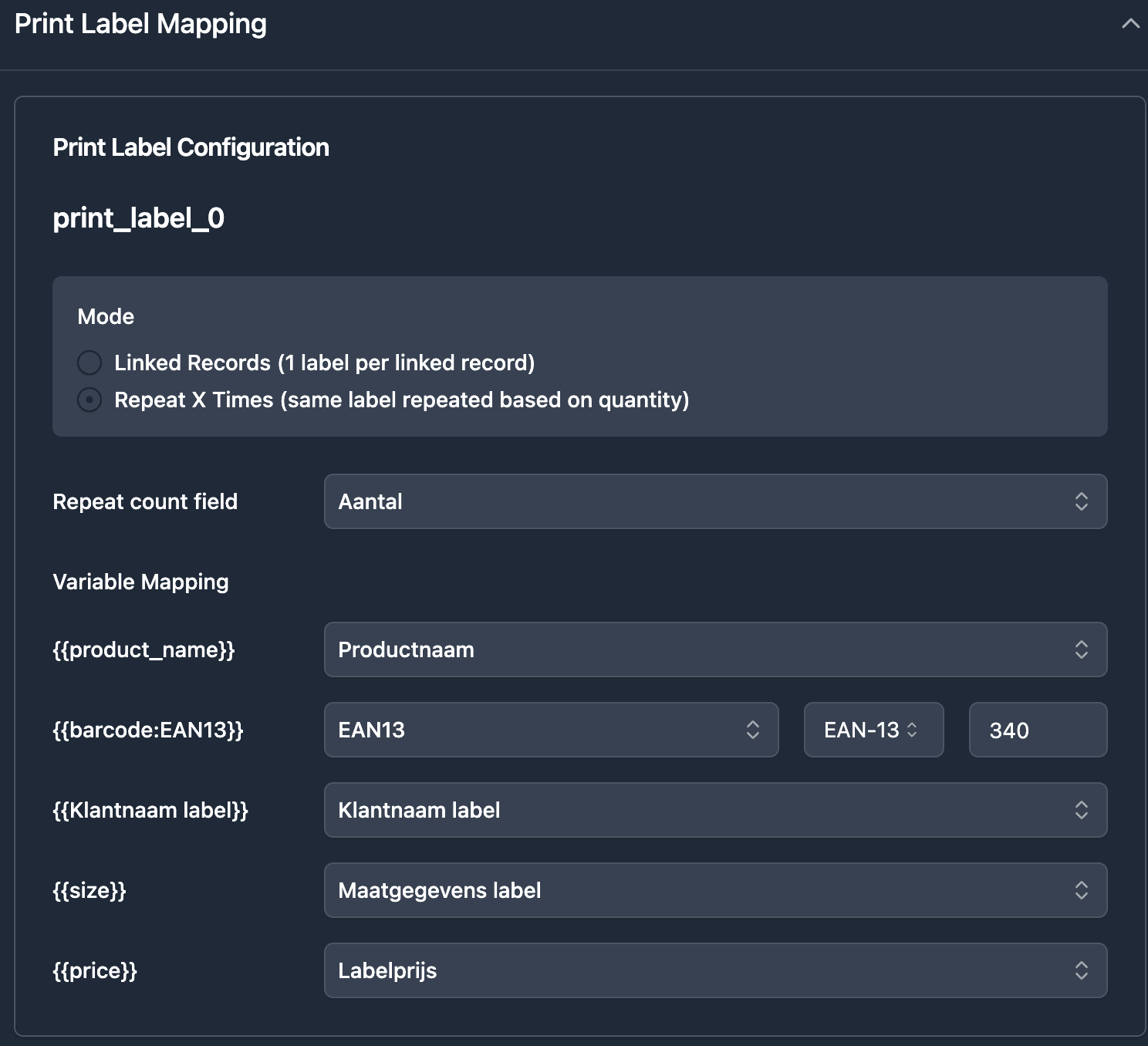
TypeFlow detects the variables in your template and asks you to map each one to an Airtable field:
{{Name}}-> Name field{{Street Address}}-> Street Address field{{City}}-> City field{{State}}-> State field{{Zip Code}}-> Zip Code field
The mapping takes a few minutes. Once done, TypeFlow knows where to pull each piece of data. For details on field mapping, see the documentation.
Step 4: Generate and Print Your Mailing Labels
Two options:
- Single-record generation: Add a button field to your Airtable base to generate labels for one contact or order record.
- Bulk generation: Generate labels for all records in a filtered Airtable view when you need a full mailing batch.
TypeFlow outputs a PDF with your labels arranged on Avery-compatible sheets. Download and print.
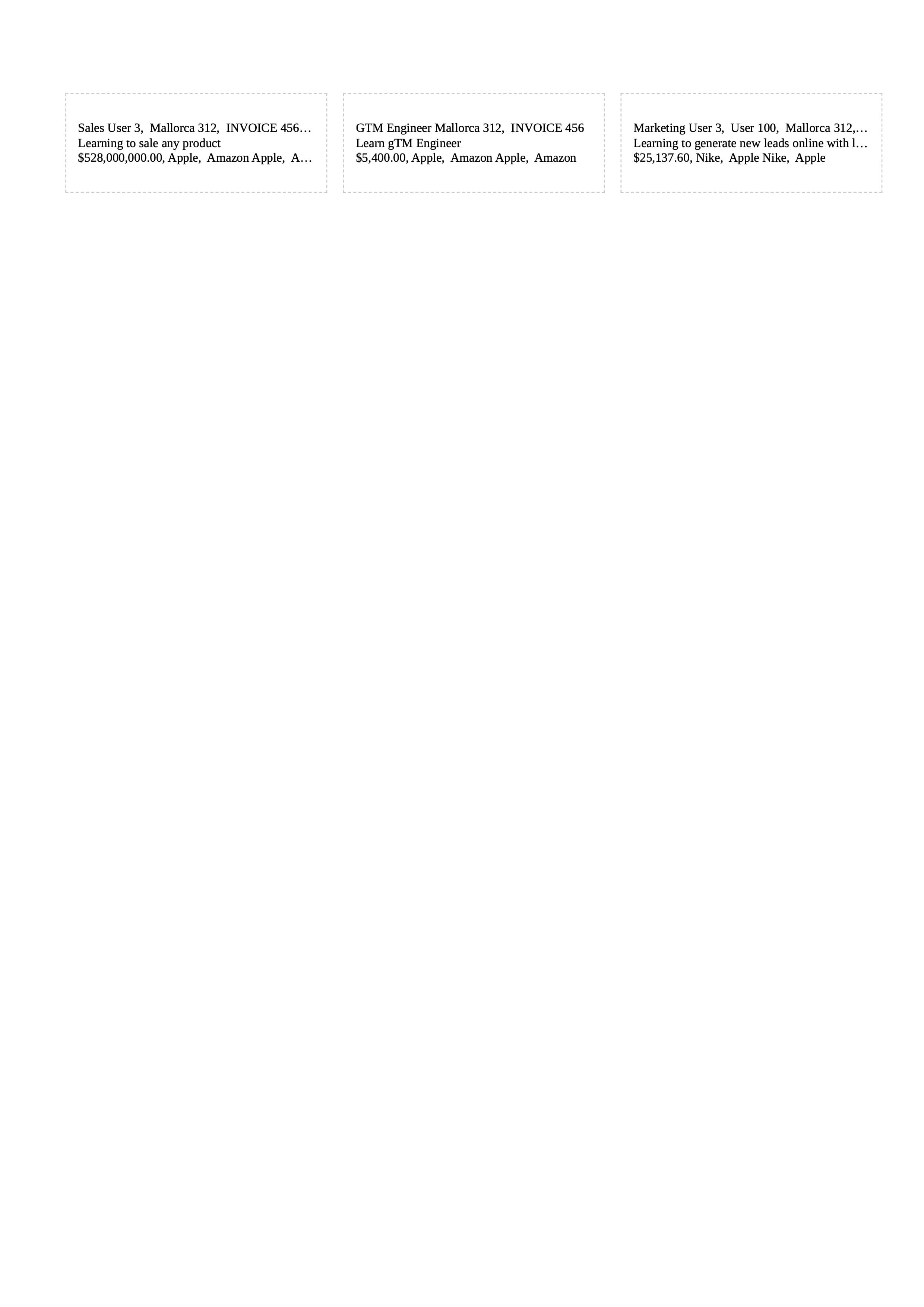
Critical print setting: Set scale to 100% and turn off "fit to page" or "shrink to fit." If the printer scales the PDF even slightly, labels won't line up with the pre-cut sections.
Tip: Print a test page on plain paper first. Hold it against your Avery sheet and check that text falls within each label boundary.
Step 5: Automate Mailing Label Generation with Airtable
If you print labels regularly - new donor signups, order shipments - automation removes the manual work.
Airtable automations can trigger TypeFlow based on events:
- A new record is created in your Contacts table.
- A checkbox "Ready to Mail" gets checked.
- A status field changes to "Approved."
Connect the automation to TypeFlow's script action, and labels generate without clicking. The generated PDF is ready to download and print, or can be stored in an Airtable attachment field for your team to access later.
Common Issues and Solutions
Labels Misaligned on the Avery Sheet
Cause: Printer scaling. The PDF is correct, but the printer shrinks it.
Fix: Set scale to 100% and disable "fit to page."
Addresses Cut Off or Wrapping
Cause: Font size too large for the label dimensions.
Fix: Reduce font size in your template, or switch to a larger format like 5162.
Wrong Number of Labels per Page
Cause: Print label mode grid does not match the Avery format.
Fix: Verify columns and rows: 3x10 for 5160, 2x10 for 5161, 2x7 for 5162.
Special Characters Not Rendering
Cause: Accented characters displaying as question marks.
Fix: Ensure Airtable data uses standard UTF-8 encoding.
Need Product or Shipping Labels Instead?
This guide is for address and mailing labels. If you need a different type of label from Airtable:
- SKU, barcode, or inventory labels - see How to Create Inventory Labels with Barcodes from Airtable
- Multiple copies based on a quantity field - see How to Print Labels from Airtable with Quantity Control
- Zebra, DYMO, or other thermal shipping labels - see How to Print Shipping Labels from Airtable with a Thermal Printer
Start Printing Avery Mailing Labels from Airtable
TypeFlow skips the Word mail merge entirely. Design your label once, connect your Airtable contacts, and print directly on Avery sheets. See what users say about TypeFlow on G2.
Start for Free and print your first batch of mailing labels in minutes.
Automate your document generation
Start with 20 free documents. Built for businesses using Airtable.
Frequently Asked Questions
Find answers to the most common questions about this feature.
Popular Questions
All Questions
Need more help?
Our team is here to help you solve all your problems and answer your questions.
Contact UsFor more label guides, see How to Print Labels from Airtable, Best Label Printing Tools for Airtable in 2026, Inventory Labels with Barcodes, Return Labels, Shipping Labels on Thermal Printers, and Page Designer vs TypeFlow.

Kevin from TypeFlow
•AuthorKevin Rabesaotra is a growth engineer and automation specialist with 8+ years of experience building no-code solutions. As Founder & CEO of TypeFlow, he has helped hundreds of businesses automate document generation and streamline workflows with Airtable integrations. Previously, Kevin was a Product Lead specializing in growth engineering, running experiments to drive revenue, retention, and lead generation.
More articles
How to Print Labels from Airtable with Quantity Control (Step by Step)
Print multiple labels per Airtable record based on a quantity field. Step-by-step guide for linked records mode and quantity repeat mode with barcodes and Avery sheets.
Read articleHow to Print Avery Mailing Labels from Airtable
Print Avery mailing labels (5160, 5161, 5162) from Airtable without Word mail merge. Step-by-step guide with print label mode, automation, and bulk generation.
Read articleHow to Create Inventory Labels with Barcodes in Airtable
Create inventory labels with Code 128, EAN-13, or QR barcodes from Airtable. Step-by-step guide for warehouse, retail, and asset tracking with thermal and Avery printers.
Read article