How to Create Inventory Labels with Barcodes in Airtable
You can create inventory labels with scannable barcodes from your Airtable data. Can Airtable print barcodes? Not on its own. Airtable's barcode field scans and stores barcode values as text, but it does not create printable barcode images. TypeFlow fills that gap: it turns any text or number field into a printable Code 128, EAN-13 or QR barcode on your inventory labels.
For all label types, see our complete label printing guide. For product labels specifically, see product labels with barcodes.
Print Inventory Labels with QR Codes from Airtable
What You Need Before Starting
You need four things: an Airtable base with inventory data, a label template, a TypeFlow account connected to Airtable, and a printer.
- An Airtable base with inventory data - products, assets, or any items you want to label.
- A label template - use TypeFlow's HTML/CSS template builder for pixel-perfect layouts, or Google Docs for simpler designs.
- TypeFlow connected to your Airtable account via OAuth.
- A printer - standard office printer with Avery sheets or a thermal printer like DYMO or Zebra.
How the Airtable Barcode Field Works
The barcode field in Airtable stores scanned or typed barcode values as plain text. Tap the field in the mobile app, your phone camera activates and reads the code, and the value saves to the record.
What it does not do is create a printable image. It holds the number or string - like a SKU or UPC - but not the visual barcode itself. According to Airtable's support documentation, the field scans UPC-A, UPC-E, EAN-13, EAN-8, Code 39, Code 93, Code 128, ITF-14, QR, Data Matrix, PDF417 and Aztec codes, but only in the iOS and Android apps, not the web app.
To show a barcode image inside Airtable, you can use the Barcode Generator app from the Airtable Marketplace, or a formula field that builds an image URL from a free barcode API. As our barcode generation guide notes, the formula route breaks if the API changes and gives you no control over size. Neither option gives you a print-ready label sheet.
Airtable handles the scanning side. TypeFlow handles the printing side by generating barcode graphics from those stored values.
Barcode Types for Inventory Labels
Use Code 128 for internal SKUs and asset tags, UPC or EAN-13 for retail products, and QR codes when the label must link to a record. For a deeper look at each format, see our barcode generation guide.
| Barcode Type | Best For | Character Limit | Airtable Field to Use |
|---|---|---|---|
| UPC / EAN-13 | Retail product labels with a GS1 number | 12-13 digits only | Single line text (keeps leading zeros) |
| Code 128 | Internal SKU, bin and asset labels | Variable length | Single line text or formula |
| QR Code | Labels that link to the Airtable record or a URL | Up to 4,296 characters | URL, text or formula |
Code 128 has no fixed character limit - the practical ceiling depends on your scanner and label width. DENSO WAVE, which created the QR Code, lists 4,296 alphanumeric characters as the QR maximum.
How to Generate Barcode Labels from Airtable
To generate barcode labels from Airtable, store each code in a text field, add a {{barcode:FieldName}} placeholder to your label template, pick the barcode type when you map the field, then generate the PDF.
- Store the barcode value (SKU, UPC, asset ID) in a single line text field.
- Add
{{barcode:SKU}}to the label template where the barcode should print. - In TypeFlow's field mapping, map the placeholder to the field and choose EAN-13, Code 128 or QR Code.
- Generate one label with a button, or a batch with bulk generation.
The template and mapping steps below walk through each part in detail.
UPC and EAN-13 for Retail Products
Standard barcodes on consumer goods. EAN-13 is common in Europe, UPC in North America. Both require numeric-only values. If you sell through major retailers, you need official registration from GS1.
Code 128 for Internal Inventory
More flexible than retail barcodes. Supports letters, numbers, and special characters. If you create your own SKU system for warehouse tracking or asset management, Code 128 is the best choice. No registration fees, no restrictions on values.
QR Codes for Links and Rich Data
QR codes store more information than linear barcodes. You can encode a URL linking to the full Airtable record, or include product details that warehouse staff view after scanning. Useful when you want more context than a simple ID number.
Which one for your labels:
- Internal SKU: a code like
SKU-2026-0142prints as Code 128. - Retail product: use the 13-digit EAN. For a 12-digit UPC, add a leading 0 and remove spaces or dashes.
- One label with both: a product label shows the retail EAN-13 plus a QR code that opens the Airtable record.
Our product label guide walks through a full retail label.
How to Set Up Your Airtable Base for Inventory Labels
Start with one inventory table that holds five fields: Product Name, SKU or Barcode Value, Location, Quantity and Category.
Core Fields to Add
- Product Name - display name on your label.
- SKU or Barcode Value - the code that becomes your scannable barcode.
- Location - where the item is stored in your warehouse or stockroom.
- Quantity - optional, useful for printing multiple labels per item.
- Category - helps filter which records to include in a batch print.
Linked Records vs Single Table
A single table works for small inventories. All product info in one place, setup takes minutes.
For larger operations with multiple storage zones, linked records make more sense. A Products table linked to a Locations table. When a product moves, update the link rather than retyping the location. This scales better as inventory grows.
How to Choose Your Inventory Label Size
Use Avery sheets like 5160 or 5163 on an office printer, or 2"x1" and 4"x6" rolls on a thermal printer. Avery and thermal label makers publish the exact dimensions for each format. Avery and thermal label manufacturers publish exact dimensions for each format.
Avery Sheet Labels
Avery templates like 5160 (address size) and 5163 (shipping size) work with standard office printers. Print a full sheet, peel and stick. For Avery multi-label sheets, use TypeFlow's print label mode to arrange multiple labels per page. For Avery setup details, see our guide to printing Avery mailing labels.
Thermal Printer Labels
Thermal printers use rolls with specific dimensions. Common sizes: 2"x1" for small product tags, 4"x6" for larger warehouse labels. They are also common for return labels. In TypeFlow, select "Label 100 x 150 mm" for 4x6 or set custom dimensions. For thermal printer setup details, see our shipping label thermal printer guide.
How to Design Your Inventory Label Template
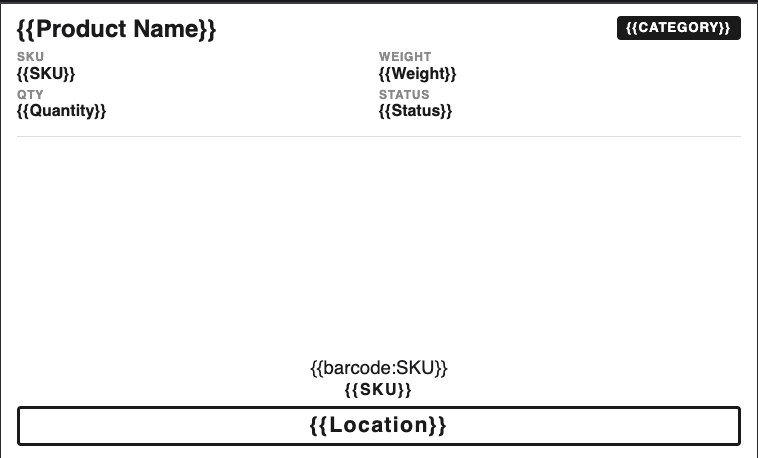
TypeFlow's HTML/CSS template builder gives you pixel-perfect control over label dimensions, fonts, and barcode placement. Google Docs also works for simpler layouts.
Step 1: Set the Page Size to Match Your Label
In the template builder, set page format to match your label. For thermal labels, select the pre-configured size (e.g., "Label 100 x 150 mm") or enter custom dimensions. For Avery sheets, use letter size and configure the print label mode grid (e.g., 3 columns x 10 rows for 5160).
Step 2: Add Variables and Barcode Placeholder
Add a {{barcode:FieldName}} placeholder where the barcode should print, and plain {{Field Name}} variables for the text.
| Airtable Field | Field Type | Template Placeholder | Prints As |
|---|---|---|---|
| Product Name | Single line text | {{Product Name}} | Text |
| SKU | Single line text | {{barcode:SKU}} | Code 128 barcode |
| UPC | Single line text | {{barcode:UPC}} | EAN-13 barcode |
| Record Link | Formula or URL | {{barcode:Record Link}} | QR code |
| Location | Single line text or linked record | {{Location}} | Text |
The name after barcode: must match your Airtable field name exactly. It is case-sensitive. You choose the barcode type later, in the mapping screen, not in the template.
A typical inventory label includes:
- Product Name.
- SKU as a barcode.
- Location.
- Quantity (if relevant).
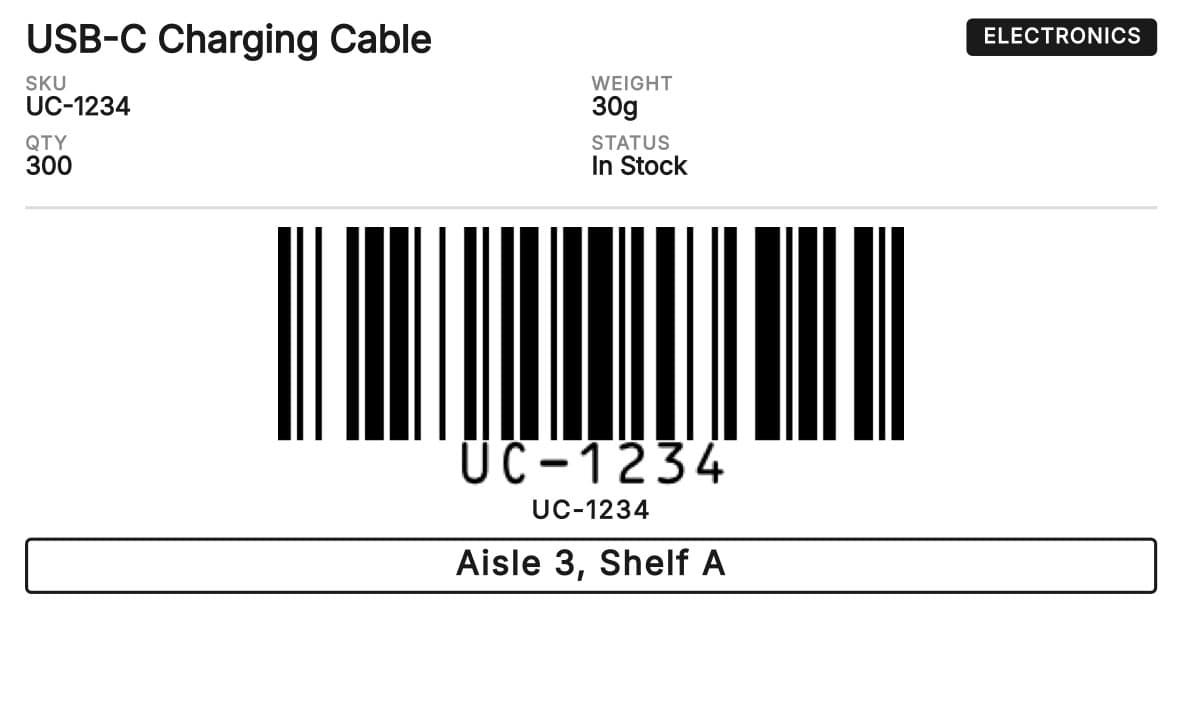
Here is what the generated label looks like with real Airtable data:
Step 3: Configure the Label Layout
For single labels (thermal printers), the template is one label per page - no extra configuration needed.
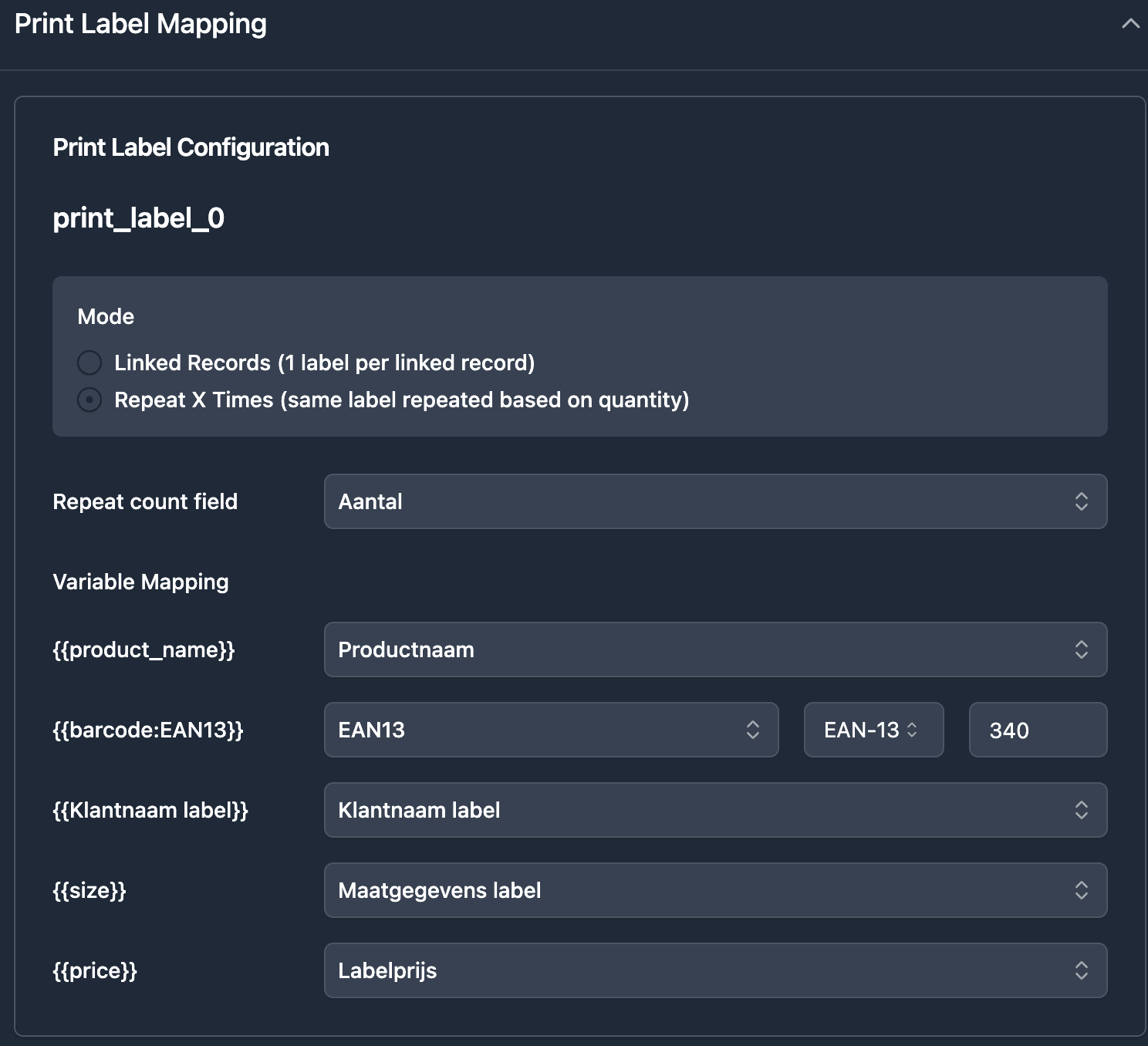
For multi-label sheets (Avery), use TypeFlow's print label mode: set rows and columns per page to match your Avery format. TypeFlow repeats your single label design across the entire sheet.
How to Map Airtable Fields to Your Label Template
Step 1: Connect Your Airtable Base
Sign up at app.typeflow.us and connect your Airtable account via OAuth. Select your base and inventory table.
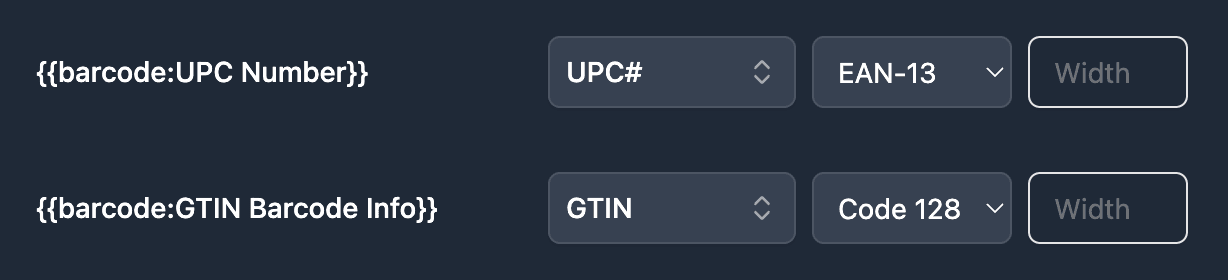
Step 2: Map Each Variable to an Airtable Field
TypeFlow shows each {{variable}} from your template. Match it to the corresponding Airtable field using the dropdown. {{Product Name}} maps to your Product Name field, {{barcode:SKU}} maps to your SKU field. For each barcode placeholder, pick the type in the dropdown: Code 128, EAN-13 or QR Code. If a variable does not match any field, TypeFlow flags it.
How to Generate Inventory Labels from Airtable
You can generate labels three ways: a button field for one label, an Airtable automation for new records, or bulk generation for a batch.
Button Field for On-Demand Printing
Add a button field to your Airtable table that triggers TypeFlow. Click the button on any record and that label generates. Works well for one-off prints when you receive a new item or replace a damaged label.
Airtable Automation for Hands-Off Printing
Set up an Airtable automation: trigger when a record is created or when a checkbox is marked. TypeFlow generates the label without manual action. When you log a new item, the label is ready to print.
Bulk Generation for Batch Printing
Select multiple records in Airtable grid view and use TypeFlow's bulk generation to create all labels in one PDF. Print the entire batch at once. Filter your view first to include only the records you need - this avoids wasting labels on items that already have them.
Scanning Barcodes Back Into Airtable
Scan your printed labels with the Airtable mobile app to update records and keep inventory counts accurate.
Open Airtable on iOS or Android, tap the barcode field, point your phone camera at the label, and the value populates the field. Use Airtable's search or filter to find records by scanned value for inventory counts, check-ins, and location updates.
Common Issues and Solutions
Barcode Not Generating
Check syntax: {{barcode:FieldName}} with the exact field name. Verify the field contains valid characters for the barcode type - Code 128 accepts letters, EAN-13 only accepts numbers.
Wrong Number of Labels Printed
Check the print label mode configuration if using Avery sheets. For quantity-based repeats, confirm the quantity field has correct values. Empty or zero values skip that record.
Labels Misaligned on Avery Sheets
Verify the print label mode grid matches your Avery template exactly. In printer settings, disable scaling and select "Actual Size."
Scanner Not Reading the Code
Ensure good contrast - black on white works best. Check that the barcode is large enough for your scanner. If problems continue, try a different barcode type.
Start Creating Inventory Labels with TypeFlow
TypeFlow connects your Airtable inventory data to printable labels with barcodes. Design your template once, map your fields, and generate labels on demand or in bulk. See what users say about TypeFlow on G2.
Start for Free and create your first batch of inventory labels in minutes.
Automate your document generation
Start with 20 free documents. Built for businesses using Airtable.
Frequently Asked Questions
Find answers to the most common questions about this feature.
Popular Questions
All Questions
Need more help?
Our team is here to help you solve all your problems and answer your questions.
Contact UsFor more guides, see How to Print Labels from Airtable, Best Label Printing Tools for Airtable in 2026, Product Labels with Barcodes, Return Labels, Shipping Labels on Thermal Printers, and Page Designer vs TypeFlow.

Kevin from TypeFlow
•AuthorKevin Rabesaotra is a growth engineer and automation specialist with 8+ years of experience building no-code solutions. As Founder & CEO of TypeFlow, he has helped hundreds of businesses automate document generation and streamline workflows with Airtable integrations. Previously, Kevin was a Product Lead specializing in growth engineering, running experiments to drive revenue, retention, and lead generation.
More articles
How to Print Labels from Airtable with Quantity Control (Step by Step)
Print multiple labels per Airtable record based on a quantity field. Step-by-step guide for linked records mode and quantity repeat mode with barcodes and Avery sheets.
Read articleHow to Print Avery Mailing Labels from Airtable
Print Avery mailing labels (5160, 5161, 5162) from Airtable without Word mail merge. Step-by-step guide with print label mode, automation, and bulk generation.
Read articleHow to Create Inventory Labels with Barcodes in Airtable
Create inventory labels with Code 128, EAN-13, or QR barcodes from Airtable. Step-by-step guide for warehouse, retail, and asset tracking with thermal and Avery printers.
Read article